

Skip to content
  • AI
  • Solutions
    • Sell Booths & Sponsorships
    • Interactive Floor Plans
    • Sponsor Fulfillment Automation
    • Invoicing & Payments
    • Lead Scanning & ROI
  • Industries
    • Healthcare & Life Sciences
    • Retail, Food & Hospitality
    • Education & Credentialing
    • Engineering & Trade
    • AMCs & Agencies
  • Customers
  • Pricing
  • Book a Demo

Book a Demo!

Fill out the form and a rep will be in touch ASAP

Edit Content

Home

  • Available Integrations

Cvent

  • Obtaining API Credentials for Cvent Integration and Establishing a Connection between Cvent and ExpoGenie
  • Making Cvent Developer Account
  • How to Configure Cvent Integration
    • Making Cvent Developer Account
    • Obtaining API Credentials for Cvent Integration and Establishing a Connection between Cvent and ExpoGenie
    • Setting up Data Flow from Cvent to ExpoGenie
    • Setting up Data Flow from ExpoGenie to Cvent
    • How does the filter work in Expo-Genie?
    • How does mapping work in ExpoGenie?
    • How does the Execution Sequence work in Expo-Genie?
  • Integration History
    • Viewing Integration History in ExpoGenie
    • Viewing Integration History in Cvent
  • Error Codes
    • Error Codes

Webhook

  • User Created In ExpoGenie
  • User Updated In ExpoGenie
  • Task Updated In ExpoGenie

Zapier

  • Booth Staff Updated Trigger
  • New Booth Staff Created Trigger
  • New Invoice Created Trigger
  • Invoice Updated Trigger

Novi

  • ExpoGenie Integration With QuickBooks
  • ExpoGenie Integration With Novi SSO
View Categories

Making Cvent Developer Account

Login to Cvent Account

  • Visit app.cvent and log in to your Cvent account.

Access Admin Panel

  • Look for the Admin Panel option, usually located in the menu or dashboard.

Navigate to REST API Section

  • Within the Admin Panel, find and click on the REST API section in the left menu.

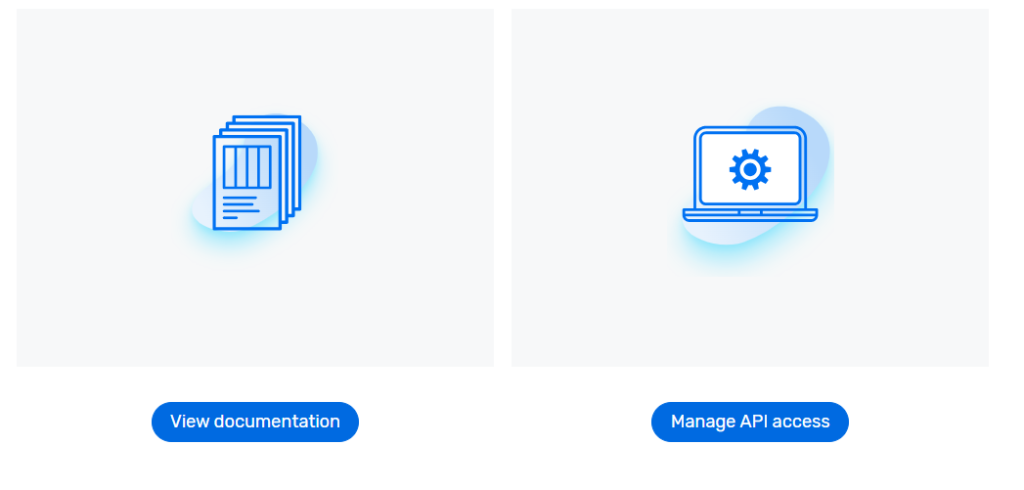
Manage API Access

  • Look for a link that says “Manage API Access” within the REST API section.
Create a Workspace

  • Inside the “Manage API Access” section, go to the Workspaces tab.
  • Click on “Create a Workspace” and choose an appropriate name for it.
  • Ensure that the workspace is set to “All Permissions.”

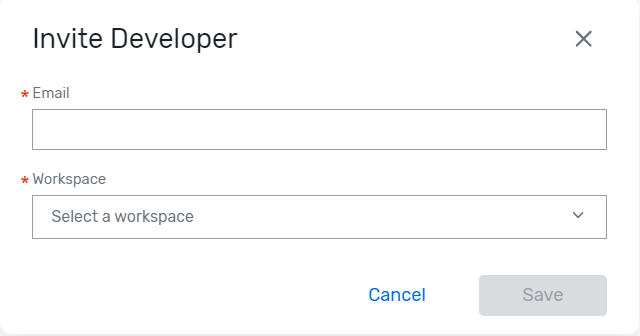
Invite Developer

  •    Navigate to the Developers tab on top
  •    Click on “Invite Developer.”
  •    Choose the newly created workspace and specify the workspace name.
  •    This action will create a developer account associated with the specified workspace.
Updated on August 11, 2025
Obtaining API Credentials for Cvent Integration and Establishing a Connection between Cvent and ExpoGenie

Want to receive news and updates?

1900 South Norfolk St
Suite 350
San Mateo, CA 94403
888-693-1208

  • ChatGPT ChatGPT
  • LinkedIn
  • G2 Reviews
Features
  • Sponsor Sales & Reg
  • Interactive Floor Plan
  • Sponsor Fulfillment
  • Invoices & Billing
  • Lead Scanning
Resources
  • Integrations
  • Try the Platform
  • Blog
  • Choosing the Right Platform
  • Intake Form
  • API Documentation
Company
  • FAQs
  • Pricing
  • Contact us
Security
  • Terms & Conditions
  • Privacy Policy
  • Security & PCI FAQ

Copyright © ExpoGenie Inc. All rights reserved 2025