
Access Integration History:
Navigate to the admin panel in the upper right corner of the dashboard.
From the dropdown list, select “Integration.”
Click on “Integration History.”

View Logs:
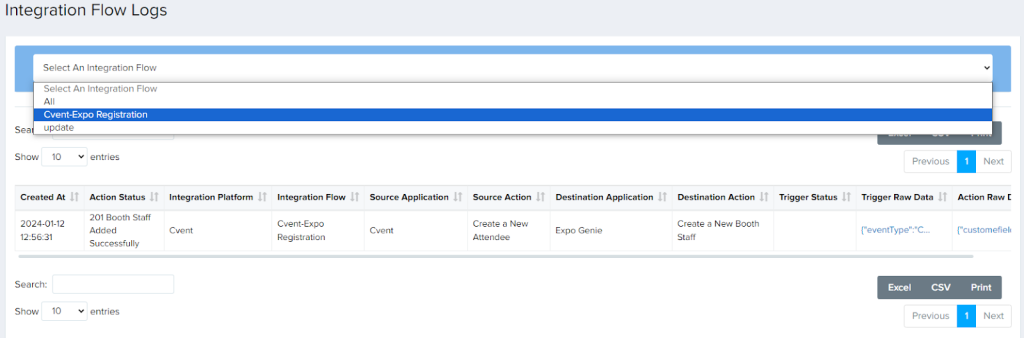
You’ll be presented with the Integration Logs section.
Choose the specific integration flow for which you want to review history.
The “All” section displays logs for all executed flows.
Key Features:
Download Logs: Download individual logs using the buttons on the right.
Search Logs: Filter logs using keywords in the left input field.
Action Status: Indicates success or failure of each log.
The fields are explained below.
| Title: CVENT TO EXPO /EXPO TO CVENT Add/Update Request | Details |
| Integration Platform | Platform for the Integration Flows |
| Integration Flow | Which Integration Flow was called |
| Source Application | Source Application where an action will be triggering the flow |
| Source Action | The action that will trigger the flow |
| Trigger Status | The result of the source trigger |
| Trigger Raw Data | The Data sent to the destination Application |
| Action Status | reply from the destination application |
| Destination Application | The name of the Destination Application where the resulting action will happen from the trigger |
| Destination Action | The action is the callback of the trigger in the source application. |
| Action Raw Data | Fields created in the destination Application. |
| Action field Field name(1..n) | Fields created in the destination Applications(separated by columns). |
| Created At | 12\6\2023 12 35PM |