
Skip to content
  • AI
  • Solutions
    • Sell Booths & Sponsorships
    • Interactive Floor Plans
    • Sponsor Fulfillment Automation
    • Invoicing & Payments
    • Lead Scanning & ROI
  • Industries
    • Healthcare & Life Sciences
    • Retail, Food & Hospitality
    • Education & Credentialing
    • Engineering & Trade
    • AMCs & Agencies
  • Customers
  • Pricing
  • Book a Demo

Book a Demo!

Fill out the form and a rep will be in touch ASAP

Edit Content

Home

  • Available Integrations

Cvent

  • Obtaining API Credentials for Cvent Integration and Establishing a Connection between Cvent and ExpoGenie
  • Making Cvent Developer Account
  • How to Configure Cvent Integration
    • Making Cvent Developer Account
    • Obtaining API Credentials for Cvent Integration and Establishing a Connection between Cvent and ExpoGenie
    • Setting up Data Flow from Cvent to ExpoGenie
    • Setting up Data Flow from ExpoGenie to Cvent
    • How does the filter work in Expo-Genie?
    • How does mapping work in ExpoGenie?
    • How does the Execution Sequence work in Expo-Genie?
  • Integration History
    • Viewing Integration History in ExpoGenie
    • Viewing Integration History in Cvent
  • Error Codes
    • Error Codes

Webhook

  • User Created In ExpoGenie
  • User Updated In ExpoGenie
  • Task Updated In ExpoGenie

Zapier

  • Booth Staff Updated Trigger
  • New Booth Staff Created Trigger
  • New Invoice Created Trigger
  • Invoice Updated Trigger

Novi

  • ExpoGenie Integration Setup for Novi, Quickbooks, QB Payments
View Categories

Adding ExpoGenie App in Zapier to use ExpoGenie Triggers

  • Login to your Zapier account. 
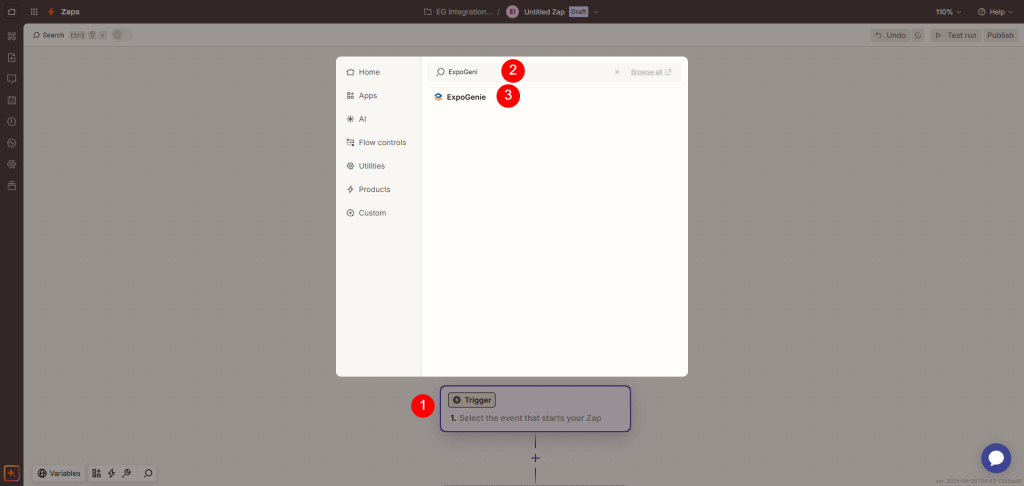
  • Create a new Zap
  • Select Trigger and search for ExpoGenie
  • Select the application ExpoGenie
  • Select Trigger from the Trigger event drop down.

Establish Connection with your required portal of ExpoGenie

  • Click on button select next to Account Field.
  • Click on “+ Connect a New Account” / “Add New Account”
  • A New browser window will appear. Submit the required details in the form.
    • User Email
    • User Password
    • ExpoGenie Portal URL
  • Click on “Yes, Continue to ExpoGenie” button to establish a connection with Zap.
  • Click on “Continue”. (Next Step will show the details required according to the selected Trigger).
Updated on July 9, 2025

Want to receive news and updates?

1900 South Norfolk St
Suite 350
San Mateo, CA 94403
888-693-1208

  • ChatGPT ChatGPT
  • LinkedIn
  • G2 Reviews
Features
  • Sponsor Sales & Reg
  • Interactive Floor Plan
  • Sponsor Fulfillment
  • Invoices & Billing
  • Lead Scanning
Resources
  • Integrations
  • Try the Platform
  • Blog
  • Choosing the Right Platform
  • Intake Form
  • API Documentation
Company
  • FAQs
  • Pricing
  • Contact us
Security
  • Terms & Conditions
  • Privacy Policy
  • Security & PCI FAQ

Copyright © ExpoGenie Inc. All rights reserved 2025