

ExpoGenie > Novi SSO Setup
Video Walkthrough: https://share.cleanshot.com/qL4hmDpL
Step 1: Add SSO Client
- Login into the client’s Novi account
- Navigate to Settings Advanced > SSO Clients
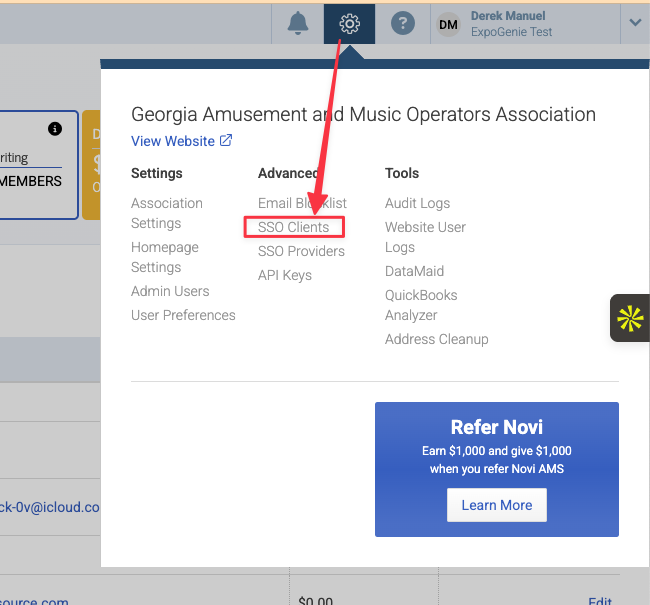
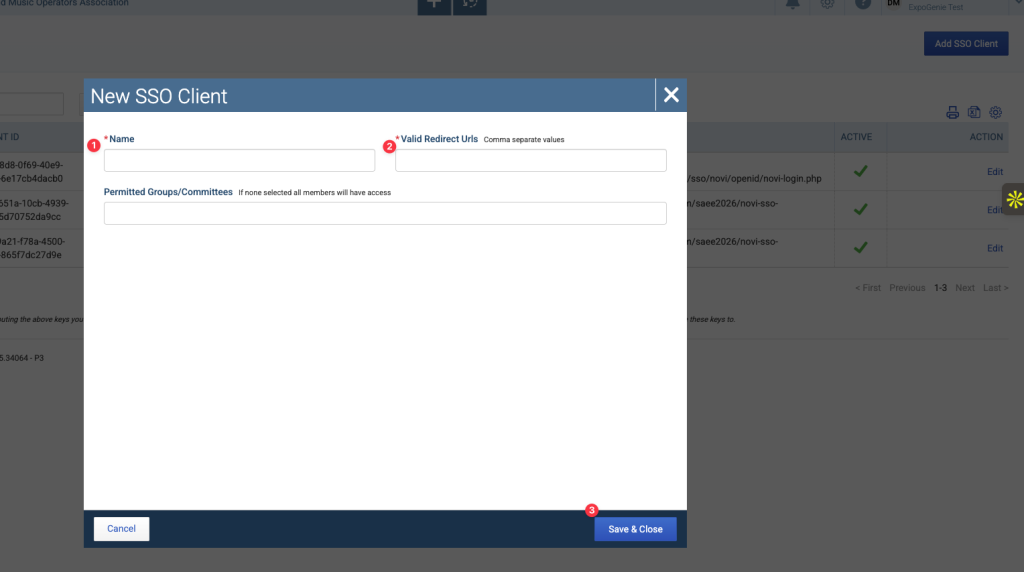
- Click Add SSO Client, then:
For the fields below, add:
- Name: “ExpoGenie Login”
- Valid Redirect URLs:
- https://<portalname>.expo-genie.com/<youreventname>/novi-sso-authentication (example ⇒ https://njaa.expo-genie.com/26/novi-sso-authentication)
- Click Save & Close
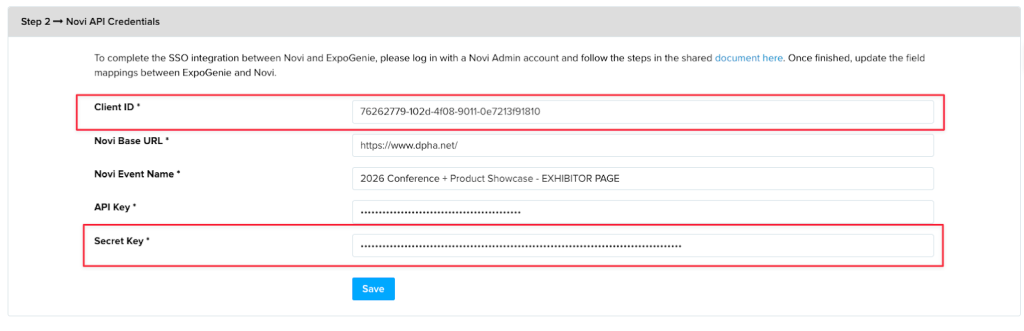
- Copy the Client Id and Secret Key from the new SSO client…

- And add them in ExpoGenie on the Novi Integrations page:
Step 2: Add API Key
- Go back to Novi > Settings > Advanced > API Keys

- Click “Add API Key” and fill out the below fields:
- Name: ExpoGenie API Key
- Integration Type: WordPress
- Click “Save & Close”

- Copy the API Key and paste back in ExpoGenie below:

Step 3: Complete Remaining Novi API Credential Fields
- Complete the rest of the Novi API credential fields as per below, then click “Save”
- Novi Base URL: The Novi page URL (example)
- Novi Event Name: Name of the exact Event in Novi (example)

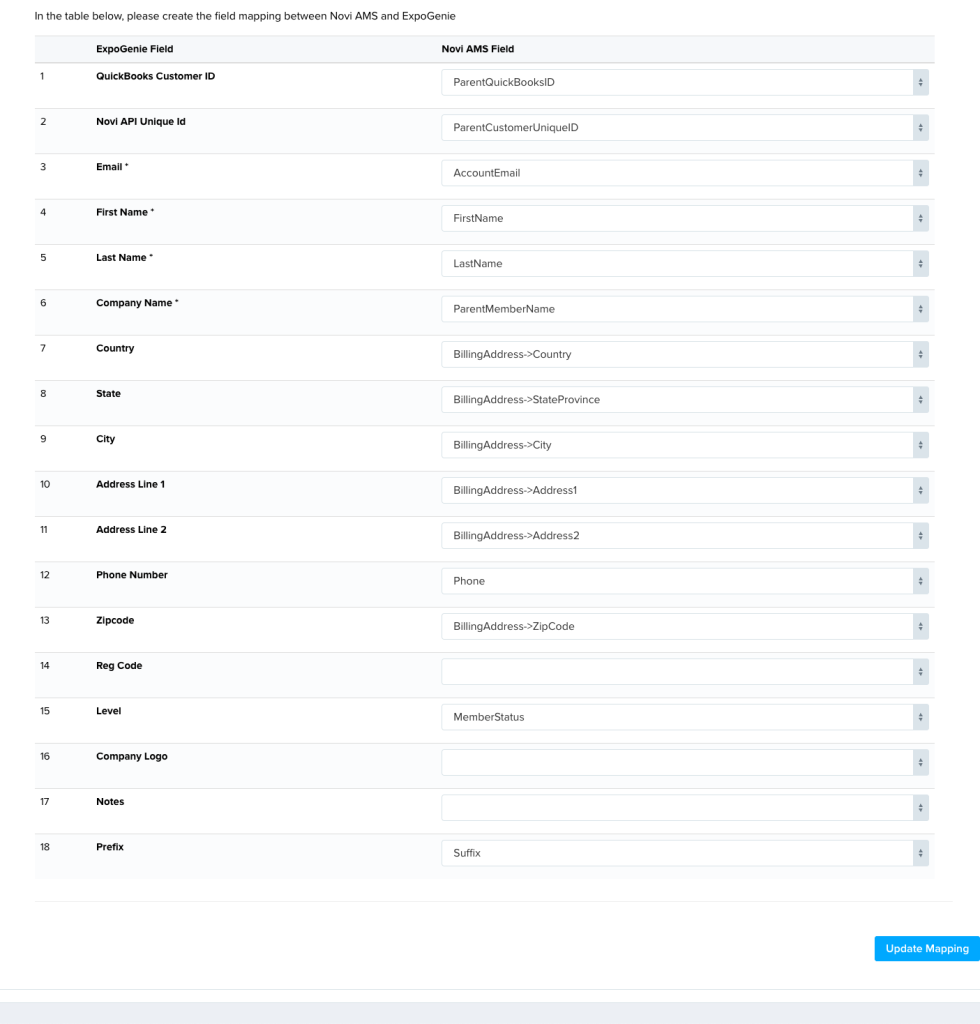
Step 4: Map ExpoGenie to Novi Fields
- Map all the ExpoGenie fields to the Novi fields below:
Step 5: Connect to Quickbooks
- Instruct client who has QBO access to login to ExpoGenie and click “Connect” on the Novi integrations page
*Important: Confirm client is logging in to the same QBO company name as associated with their Novi account
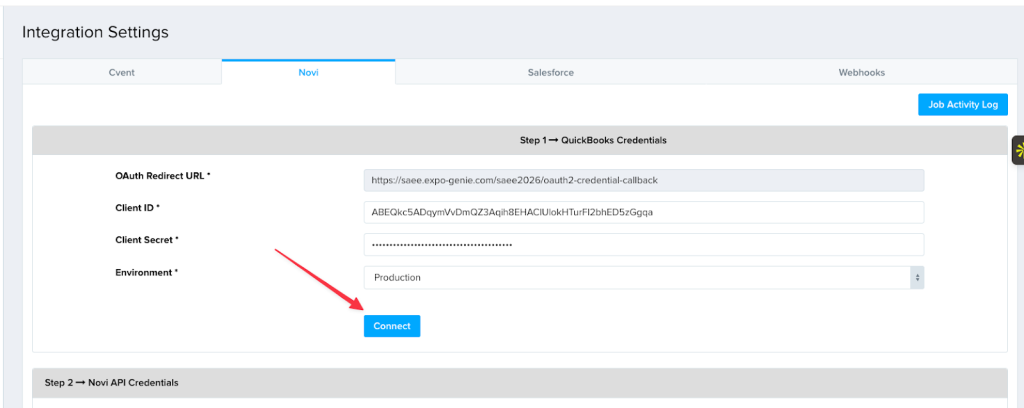
- Once successfully connected, click on the “Fetch Novi & QBO Items” to confirm it has been properly connected, which should like like the below:

Step 6: Connect to Quickbooks Payments
- Instruct client who has QBO access to login to ExpoGenie, navigate to Payment Gateways > QBO Payments > Click “Settings”

- Instruct them to scroll to the bottom of page, and click the big green “Connect to Quickbooks” button
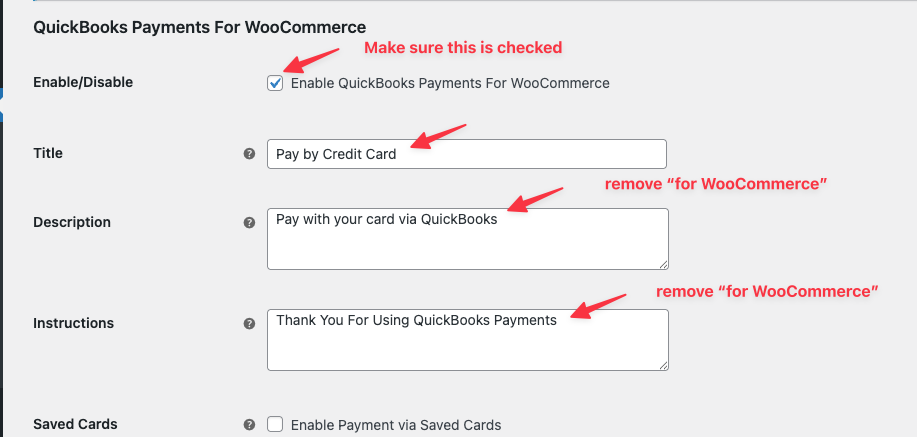
- Once connected, update the following fields on this same page (not the client):
Complete: After the last step, the integration is complete and ready for testing.