

Access the Cvent Developer Portal:
(https://developers.cvent.com/)
- Navigate to the Cvent Developer Portal and locate the “Create Application” button. Click it to initiate the process.

Create Application:
- Select “Machine to Machine” as the application type.
- Assign an appropriate name to the application that clearly reflects its purpose.
- Indicate the specific APIs you intend to utilize for the integration.
- Click the “Save” button to finalize the application creation.

Select the following scopes in the scope dropdown.

Obtain Client ID and Client Secret:
Upon successful application creation, return to the Developer Portal’s main page.
Locate the newly created application within the list of applications.
Copy both the Client ID and Client Secret, as these credentials are essential for establishing the connection.

Access Expo-Genie Integration Settings:
- Within Expo-Genie, navigate to the admin panel, accessible via the upper right corner of the interface.

- Locate the “Integrations” tab and select it.
- Within the Integrations settings, find the “Cvent” tab.
- Activate the integration process by toggling the “Configure Cvent Integration” slider to the “On” position.
Provide API Credentials:
Under the “Step-1 API Credentials” section, paste the previously copied Client ID and Client Secret into the designated fields.
Click the “Connect” button to initiate the connection process between Expo-Genie and Cvent.
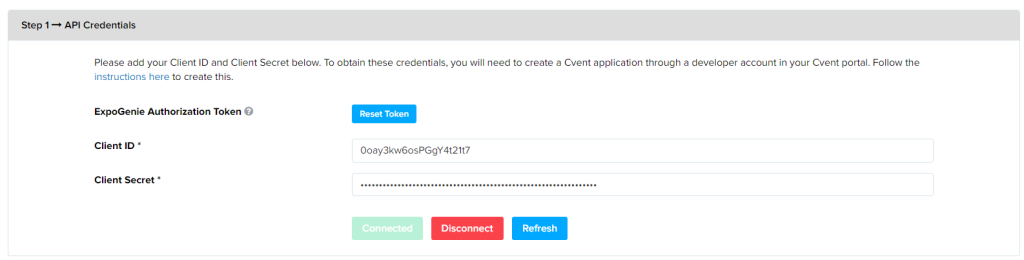
Upon completion of these steps, the connection between Expo-Genie and Cvent will be successfully established.